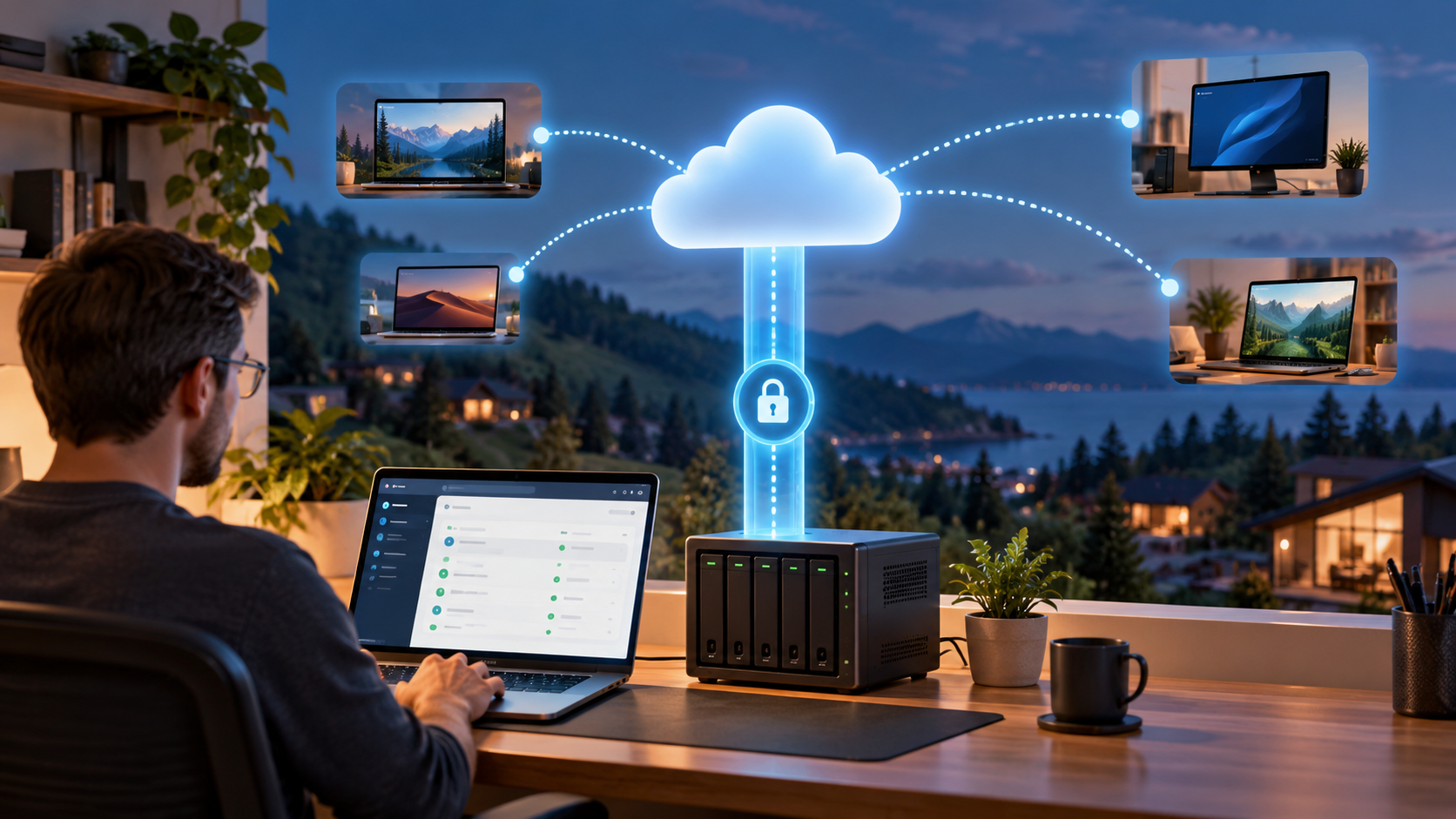
MeshCentral puts device inventory, terminal access, file transfer, and remote desktop in one web console. Cloudflare Tunnel can carry its HTTPS and WebSocket traffic without forwarding an inbound port on your router.
There are two separate milestones: the login page loads, and an enrolled agent can actually complete a remote session. This guide checks both. The example hostname is mesh.example.com; use a dedicated hostname in a Cloudflare-managed zone you control.
Verification status
| Area | Evidence and limits |
|---|---|
| Intended environment | A rootful Docker Engine on a Linux server with the Compose plugin; a remotely managed Cloudflare Tunnel. |
| Preparation | Upstream Docker entrypoint/configuration schema and Cloudflare documentation reviewed on October 31, 2026. Ten Bash blocks pass syntax checks; JSON parses, selected schema names/types/ranges check out, and embedded Compose YAML parses. These are static checks, not full schema or runtime validation. |
| Runtime | No Cloudflare account, public tunnel, first-admin registration, or real device enrollment was exercised during preparation. |
| Required validation | Verify origin binding, administrator MFA, certificate discovery, agent reconnection, remote sessions, and an isolated recovery on the selected versions. |
1. Understand the connection path
| Connection | What carries it |
|---|---|
| Administrator browser → Cloudflare | HTTPS/WebSockets on public port 443, then MeshCentral login and MFA. |
| MeshAgent → Cloudflare | Agent connections and relay sessions over the published hostname. |
cloudflared → Cloudflare |
An outbound encrypted tunnel from the Linux host. |
cloudflared → MeshCentral |
Plain HTTP to 127.0.0.1:4430, confined to the same host. |
Both containers use Linux host networking. This is deliberate: the connector can reach the same loopback listener that MeshCentral binds, and MeshCentral can trust the connector’s loopback address. This is not a portable Docker Desktop or rootless-Docker example. See Docker host networking.
This walkthrough uses MeshCentral’s own authentication and MFA. It assumes a new hostname without an interactive Cloudflare Access application in front of it. Tunnel transport alone does not add an identity policy.
A normal MeshAgent cannot complete a browser’s Access login page, CAPTCHA, or JavaScript challenge. An Access service token is not useful unless the particular client can send its required credentials. If your design requires Access/WARP, plan and test that client path separately; do not disable an existing access policy just to make an agent appear online. Avoid broad path-bypass recipes based only on a successful web login.
2. Prepare the host and choose images
Use a dedicated Linux VM or server with Docker Engine and Compose already installed. You also need Bash, Python 3, curl, SSH administration, a Cloudflare account/zone, and permission to enroll a test endpoint.
Run the server-side commands in one root Bash shell. Check that Docker targets this server’s intended local daemon:
|
|
Select released tags or digests from the upstream MeshCentral image instructions and Cloudflare’s official cloudflare/cloudflared image. The token-file option below needs cloudflared 2025.4.0 or later. Record the exact image digests you deploy; this article does not guess a current release tag.
Use a new directory. Do not run the configuration-writing commands over an existing MeshCentral installation:
|
|
Keep the project directory, Compose project name, and persistent folders together. The official MeshCentral image uses /opt/meshcentral/meshcentral-data and the companion folders mapped below; paths from other image projects are not interchangeable.
3. Create the tunnel, but leave its connector stopped
In Cloudflare’s tunnel dashboard, create a remotely managed cloudflared tunnel. Add a published application route/public hostname with:
| Field | Value |
|---|---|
| Hostname | Your chosen mesh.example.com equivalent |
| Service type | HTTP |
| Origin URL | http://127.0.0.1:4430 |
The origin is HTTP because TLS terminates at Cloudflare and the local connection stays on loopback. You do not need to disable origin-certificate verification for an HTTP origin. An HTTPS public hostname and an HTTP local origin are different parts of the path.
Obtain the tunnel token from the connector setup instructions. Do not paste the full install command into the token prompt. Store only its token value:
|
|
The connector below runs as UID/GID 65532; the file is readable by that group and mounted as a Compose secret. The token is a credential, not an application password. Keep it out of Git, screenshots, and support logs. See Cloudflare’s token-file option.
Do not start the connector until the first administrator and MFA are ready.
4. Write the MeshCentral configuration
|
|
The settings have specific jobs:
portis the local HTTP listener in TLS-offload mode;aliasPortis the public port agents and browsers use.tlsOffload/trustedProxyidentify the local connector, not every Cloudflare edge IP. Do not replace them with a blanket trust setting.certUrltells MeshCentral where to obtain the TLS certificate agents see at Cloudflare. It is not the plain-HTTP origin URL.webRTC: falsekeeps this baseline on server-relayed connections. It does not promise a latency improvement.mpsPort: 0disables Intel AMT CIRA/MPS for this guide. An HTTP tunnel does not automatically provide a raw AMT TCP service.newAccounts: trueis temporary, while the listener is private and the tunnel is stopped.
Use the upstream configuration schema for the release you selected. Underscored example keys such as _certUrl are disabled examples, not active settings.
5. Write Compose and start only MeshCentral
|
|
Require the listener to bind to 127.0.0.1, not 0.0.0.0 or [::]. An HTTP response only checks the web listener. It does not establish successful authentication or agent enrollment.
DYNAMIC_CONFIG=false preserves the JSON you wrote instead of rebuilding it from image environment variables. The container should use that file unchanged. At this stage the public certUrl may be unreachable because the connector is still stopped; inspect the logs and re-check certificate discovery after publishing.
6. Create the first administrator privately
From your workstation, forward a local browser port over SSH. Replace the example SSH destination with your server:
|
|
Open http://127.0.0.1:8088 on that workstation. The local HTTP hop travels inside the SSH connection. Create the first account; MeshCentral makes the first user an administrator. Complete its MFA setup and store recovery codes securely. Confirm you can log out and sign back in before continuing.
Close self-registration while preserving the rest of the configuration:
|
|
Check that public signup is closed after restart. Keep at least one tested administrator recovery method. Avoid adding plugins or SSO changes until the basic deployment works.
7. Start the tunnel and check the public certificate
|
|
Wait for the tunnel dashboard to report a healthy connector and for the hostname’s edge certificate to be valid. Then restart MeshCentral so it can load the public certificate through certUrl:
|
|
Use normal TLS verification; do not add curl -k. Check the MeshCentral log for successful certificate discovery rather than assuming a working login page proves the agent certificate path is correct. DNS inside the container must resolve this name to Cloudflare, not a hosts-file override pointing at the private origin.
MeshCentral’s maintainers recommend configuring certUrl for Cloudflare offload. Do not work around a hash mismatch with ignoreAgentHashCheck or a similar trust bypass. A changed edge certificate is a reason to inspect certificate discovery and reconnect behavior, not to remove identity checks.
Confirm WebSockets are enabled for the zone. Review caching rules so this management hostname is not subject to a cache-everything rule. WAF or bot challenges can block the initial WebSocket handshake; diagnose the exact request and rule before making a narrowly scoped change. Do not globally disable protections.
8. Enroll one authorized test device
Sign in at the public hostname, create an agent-managed device group, and use its Add Agent action to obtain the installer for the test machine’s OS and architecture. Inspect the command/installer and hostname before running it with the required privileges on that device.
Do not copy an installation command from another MeshCentral server or publish a real device-group enrollment command in the blog. Use group permissions and any required user-consent settings appropriate to your support workflow.
Verify these separately:
| Test | Passing result |
|---|---|
| Agent registration | The intended device appears under the expected group and reports the correct identity. |
| Terminal | A harmless command such as hostname completes on the intended host. |
| File transfer | A small disposable file uploads/downloads and its content matches. |
| Remote desktop | The authorized session opens; consent, display, and input behave as expected for that OS. |
| Reconnection | The agent returns after a controlled connector/server restart, and a new remote session works. |
Test from outside the server’s LAN as well. A browser reaching the login page is not a substitute for any of these checks. Cloudflare may close WebSocket sessions during edge maintenance; agentPong supplies periodic server traffic but does not guarantee uninterrupted sessions. See Cloudflare’s WebSocket behavior.
Troubleshooting by symptom
| Symptom | First checks |
|---|---|
| Tunnel healthy, public response is 502 | Check the origin URL, port, local HTTP response, and that both services use host networking. localhost inside a normal isolated container would be a different listener. |
| Login works, agent stays offline | Inspect the agent’s configured hostname, public DNS, certificate-discovery logs, Access redirects, and challenge responses. |
| Device online, terminal/files/desktop fail | Check relay WebSocket handshakes, current certificate hashes, OS session permissions, and endpoint logs. |
| Failures begin after certificate rotation | Re-check the exact public certificate seen by server and agent; refresh supported configuration/reconnect behavior without bypassing hash verification. |
| Token file permission denied | Confirm the source file is group-readable by 65532 and the Compose secret is mounted at the command’s path. |
| Unexpected local port | exactPorts=true should fail rather than silently selecting a different listener. Resolve the conflict before publishing. |
For a quick view of service state and recent errors:
|
|
Redact tokens, enrollment links, user details, and device identifiers before sharing logs.
Back up the server identity before upgrading
Preserve the complete meshcentral-data directory, including database, configuration, certificates, and private keys. Also retain meshcentral-files, any custom meshcentral-web content, required recordings/backups, Compose/image records, and separately protected tunnel/recovery credentials. A fresh installation with new keys is not the same server identity.
For this local-database baseline, take an application-consistent copy during a maintenance window: stop the connector and MeshCentral, verify both stopped, back up the required folders, then restart and test reconnection. Do not archive a changing database and call it a verified recovery point. If you select an external database later, include its supported backup/restore procedure.
Use the Restic backup and isolated recovery guide for encrypted copies of prepared data. Test restoration on separate storage with production agents and public routing isolated; do not bring two copies of the same management identity online against the same devices.
Before an image update, save the current digests and recovery materials, review release notes, and test the selected replacements. Schema or database changes can make an image-only rollback insufficient. Keep automatic in-container self-update disabled when image versions are managed by Compose.
The deployment is ready to rely on only after the administrator, agent, relay, reconnection, and recovery checks pass on your actual versions. Record the image digests and observations rather than treating this proposed configuration as an executed lab result.
Continue reading
- Cloudflare Tunnel with Docker — the connector and routing model.
- Intel AMT Serial over LAN — a separate out-of-band text-console recovery path.
- Backup strategy — plan independent copies and recovery credentials.